JavaScriptのCanvas APIでarc()メソッドを使い、円を描画する方法を解説します。
下準備
まずは下準備から。htmlの<body></body>内に以下のcanvas要素を配置します。
<canvas id="canvas"></canvas>jsにてコンテキストを取得します。
const canvas = document.getElementById('canvas');
const ctx = canvas.getContext('2d');
画像ではキャンバスの範囲がわかりやすいようにcssにて背景色を指定してあります。
arc()メソッドで円を描画
jsに以下のコードを追加すると円を描画できます。
ctx.beginPath();
ctx.arc(75, 75, 50, 0, 2 * Math.PI);
ctx.stroke();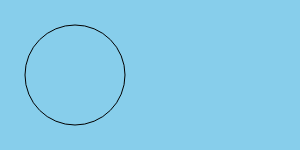
円のパスの描画にはarc(x, y, radius, startAngle, endAngle)メソッドを使います。x、yは円の中心の座標で、radiusは半径の長さ、startAngleは円弧の開始角、endAngleは終了角をラジアンで指定します。1周は2 * Math.PIとなります。
stroke()をfill()に置き換えると塗りつぶすことができます。
ctx.fill();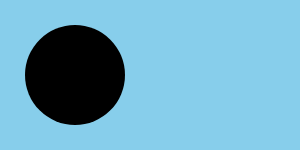
lineWidth()、strokeStyle()、fillStyle()で線の太さ、線の色、塗りつぶしの色を指定することができます。
ctx.beginPath();
ctx.lineWidth = 8;
ctx.strokeStyle = 'green';
ctx.arc(75, 75, 50, 0, 2 * Math.PI);
ctx.stroke();

ctx.beginPath();
ctx.fillStyle = 'green';
ctx.arc(75 + 150, 75, 50, 0, 2 * Math.PI);
ctx.fill();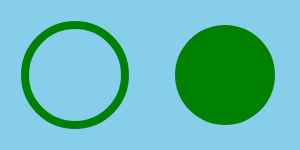
円弧を描画
終点の値をいじることで円弧を描くことができます。
ctx.beginPath();
ctx.arc(75, 75, 50, 0, Math.PI);
ctx.stroke();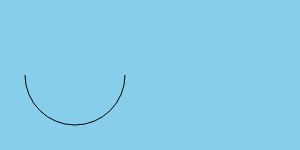
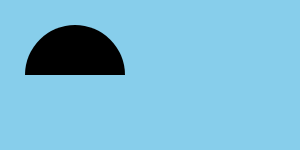
開始角に指定してある角度0は右端で、終了角のMath.PIは一周の半分なのでちょうど左端となり、開始角から終了角まで時計回りにパスが描かれるためこのような図形が完成します。最後の引数にtrueを加えることで、反時計回りにパスを描くことができます。
ctx.beginPath();
ctx.arc(75, 75, 50, 0, Math.PI, true);
ctx.stroke();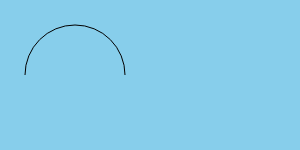
stroke()の前にclosePath()を追加することで開始点と終了点をパスをつなぐことができます。
ctx.closePath();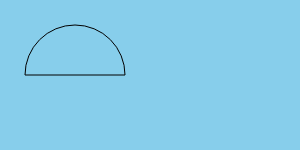
stroke()をfill()に変えることで塗りつぶすことができます。この場合、パスは自動的に閉じられるためclosePath()は不要となります。
ctx.fill();